What to Check First
- Connect an HDMI cable from the HDMI output on your Blu-ray Player, to the HDMI input on your TV.
- Make sure the both the Blu-ray Player and the TV are powered On .
- Set the Input on your TV to match the input you plugged the HDMI cable into.
- That's all there is to it! You're done.
- Make sure both the Blu-ray Player and the TV are powered On .
- Connect an HDMI cable from the HDMI (ARC) output on your TV (usually HDMI 1), to the HDMI input slot on the Blu-ray Player.
- Locate the Sound menu on your TV (differs by model).
- Select Sound Out from the Sound menu.
- Choose Audio Out(Optical/HDMI ARC) from the list.
- Your Blu-ray Player should automatically switch to ARC mode.
Why This Can Happen
Symptoms can have more than one cause, and the correct steps depend on the exact model, installation and operating conditions. Use the checks above to narrow the issue before service.
Safety and Model-Specific Guidance
Frequently Asked Questions
What should I check first for Connecting External Devices - Blu-ray?
Connect an HDMI cable from the HDMI output on your Blu-ray Player, to the HDMI input on your TV.
When should I stop troubleshooting and contact LG?
Stop if the product shows signs of electrical damage, burning, leaking near electrical components, or if the recommended checks do not resolve the issue. Use LG USA support for model-specific service guidance.
Does this guidance apply to every LG model?
Not always. Controls, error codes and service steps can differ by model. Confirm the exact model number and follow the linked LG USA article for model-specific instructions.
Related LG Products
These model pages are linked because the stored category or exact model matches this Help Library topic.
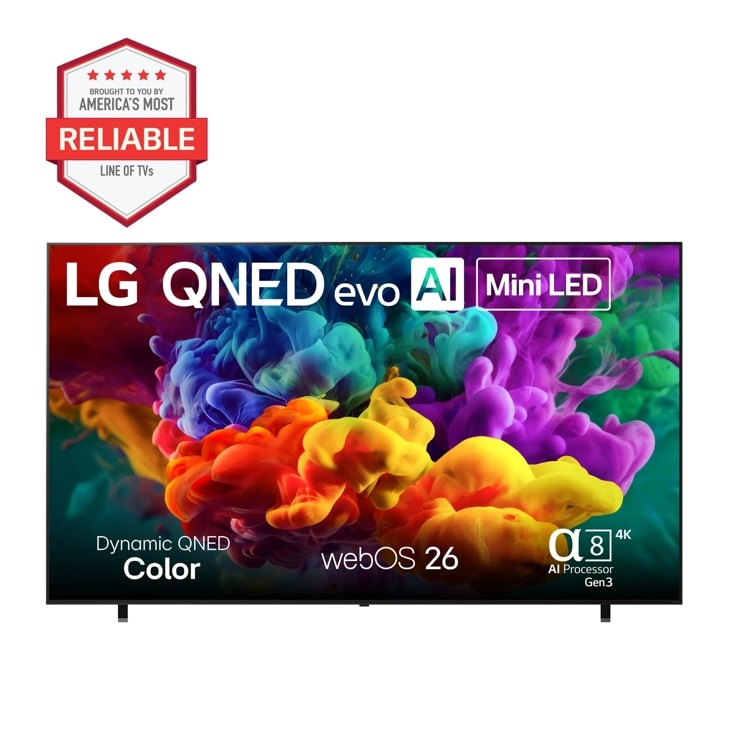
LG 100QNED84BU — 77 Inch Class LG OLED evo AI W6 4K Smart TV 2026 with Wallpaper Design and Supplied Flush Wall Mount
Home Appliances · Top Appliance Deals
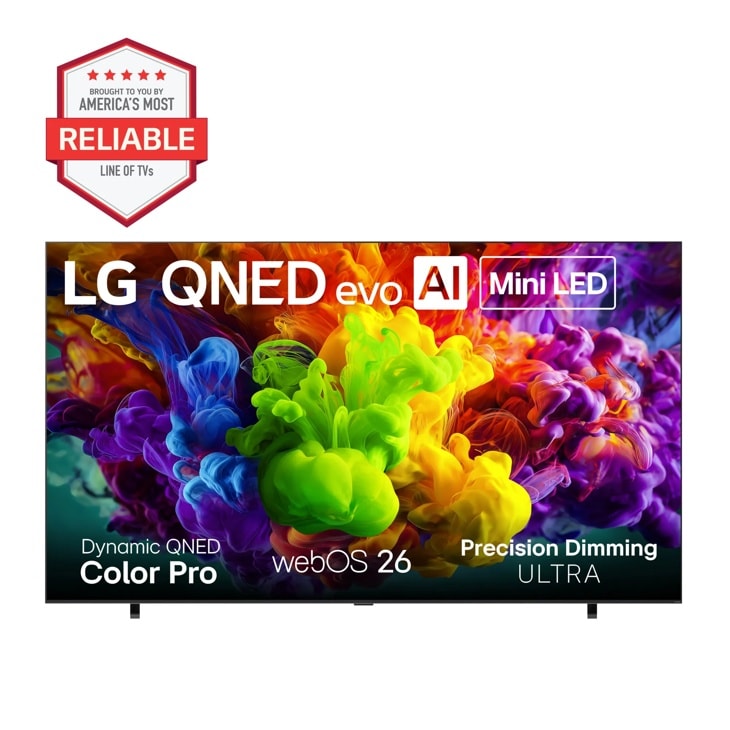
LG 115QNED92BU — 115 Inch Class LG QNED evo AI QNED92B Mini LED 4K Smart TV 2026
Home Appliances · Top Appliance Deals
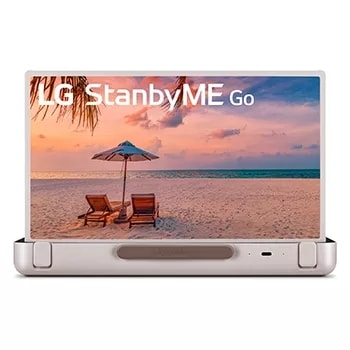
LG 27LX5QKNA — StanbyME Go 27 Inch Briefcase Design Touch Screen
Home Appliances · Top Appliance Deals
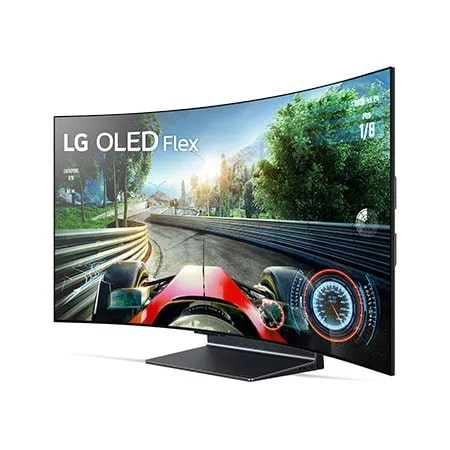
LG 42LX3QPUA — 42 Inch Class OLED Flex Smart TV with Bendable Screen
Home Appliances · Top Appliance Deals
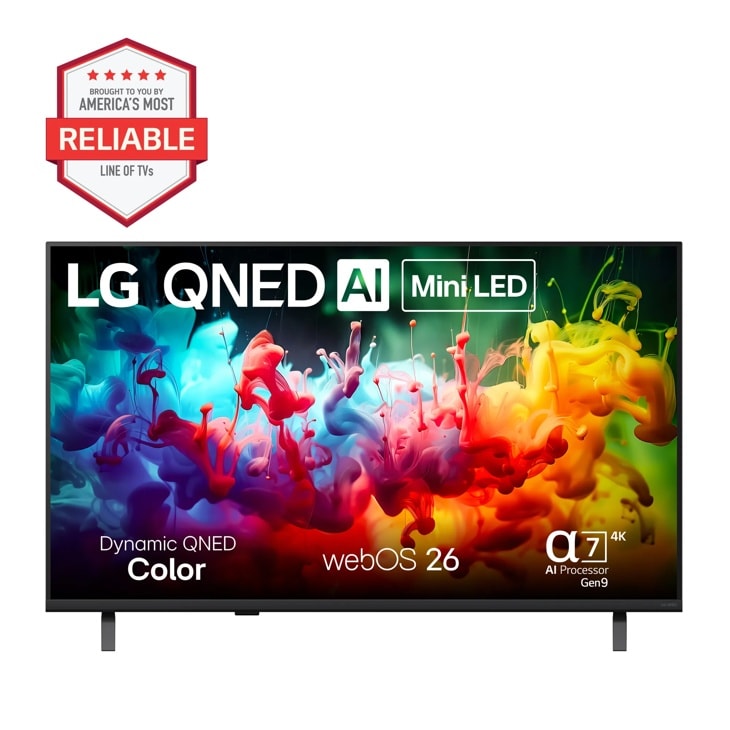
LG 43QNED75BAA — 43 Inch Class LG QNED AI QNED75B Mini LED 4K Smart TV 2026 - .AUS | LG USA
Discover the 43 inch Class LG QNED AI QNED75B Mini LED 4K Smart TV 2026 that features With Dynamic QNED Color see vivid color for a lifelike picture and A thrilling watching experience powered by the α7 AI Processor 4K Gen9. Find reviews, specs, and more for 43QNED75BAA.AUS.