What to Check First
- The Free Sync function is used to minimize tearing and disconnection resulting from the mismatches between the monitor screen and the game operation frame.
- To activate the Free Sync function, go to the monitor setting and set Free Sync as default or expansion. Monitor [Settings] → [Game Adjust] → [FreeSync] : Select basic or expansion.
- Depending on the input port and Free Sync’s basic/expansion setting, a different range of vertical frequency is supported. In case of tearing or screen disconnections in Free Sync, go to the PC game setting and turn on the vertical sync function.
- This guide was created for all models, so the images or content may be different from your product.
Why This Can Happen
Symptoms can have more than one cause, and the correct steps depend on the exact model, installation and operating conditions. Use the checks above to narrow the issue before service.
Safety and Model-Specific Guidance
Frequently Asked Questions
What should I check first for [LG Monitor] How to use FreeSync?
The Free Sync function is used to minimize tearing and disconnection resulting from the mismatches between the monitor screen and the game operation frame.
When should I stop troubleshooting and contact LG?
Stop if the product shows signs of electrical damage, burning, leaking near electrical components, or if the recommended checks do not resolve the issue. Use LG USA support for model-specific service guidance.
Does this guidance apply to every LG model?
Not always. Controls, error codes and service steps can differ by model. Confirm the exact model number and follow the linked LG USA article for model-specific instructions.
Related LG Products
These model pages are linked because the stored category or exact model matches this Help Library topic.
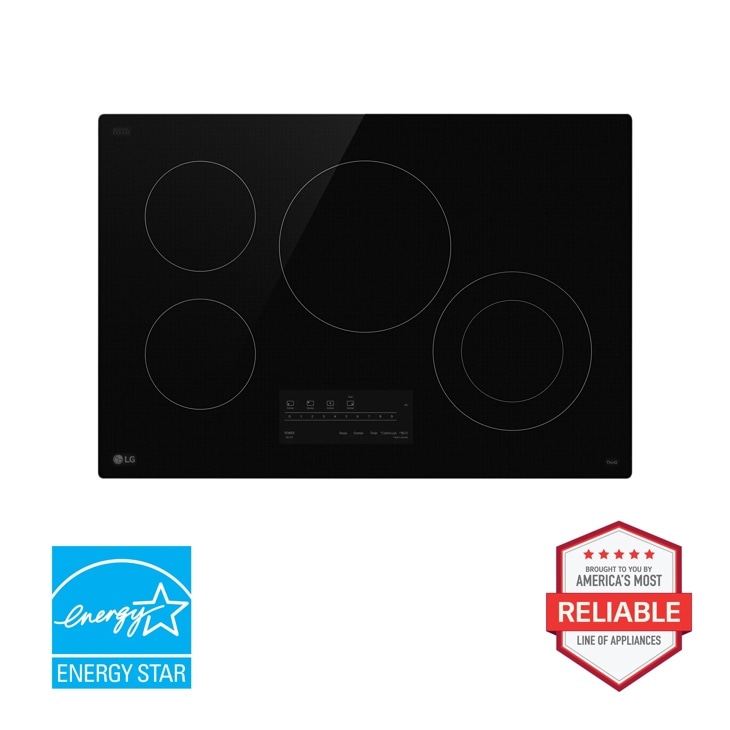
LG CBEW3013BE — 30” Electric Cooktop with UltraHeat™ 2.5kW Element
Check out the 30” Electric Cooktop with UltraHeat™ 2.5kW Element in Black that features 4 electric radiant elements and UltraHeat™ 2.5kW.
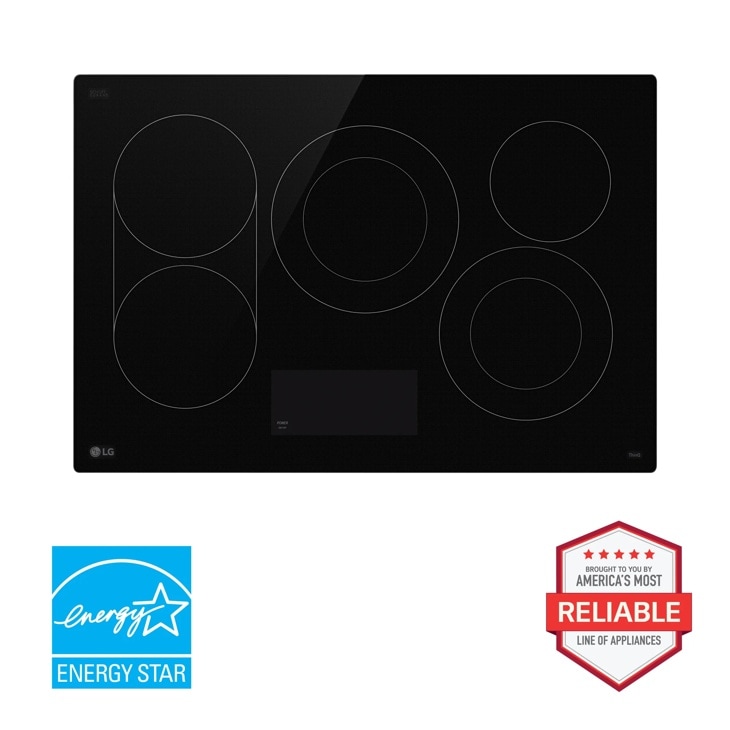
LG CBEW3017BE — 30” Electric Cooktop with UltraHeat™ 3.2kW Element
Check out the 30” Electric Cooktop with UltraHeat™ 3.2kW Element in Black that features 5 electric radiant elements and UltraHeat™ 3.2kW.
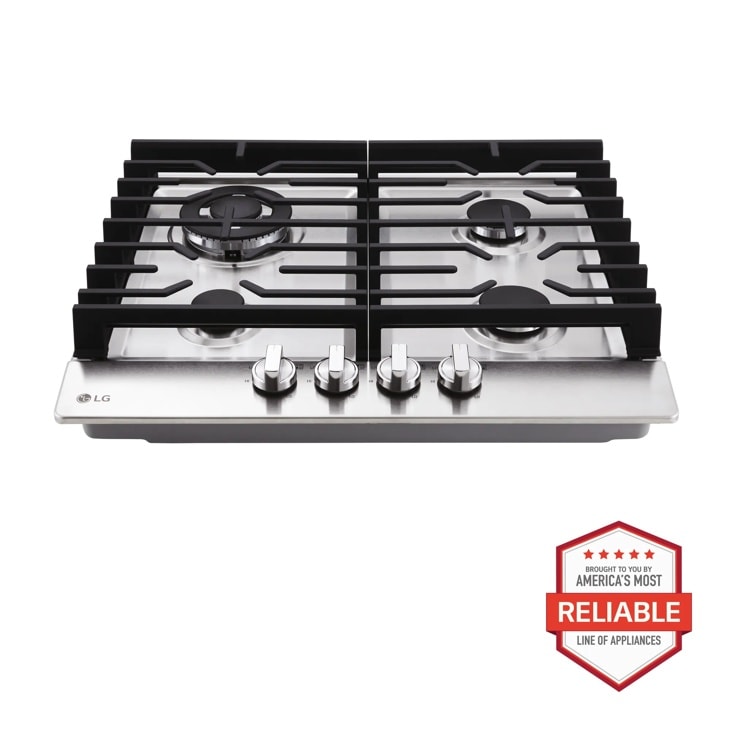
LG CBGD2414S — 24 Inch Compact Gas Cooktop
Discover the 24-inch Compact Gas Cooktop that features 14K BTU Dual Burner and Stainless Steel Finish. Shop CBGD2414S from LG USA.
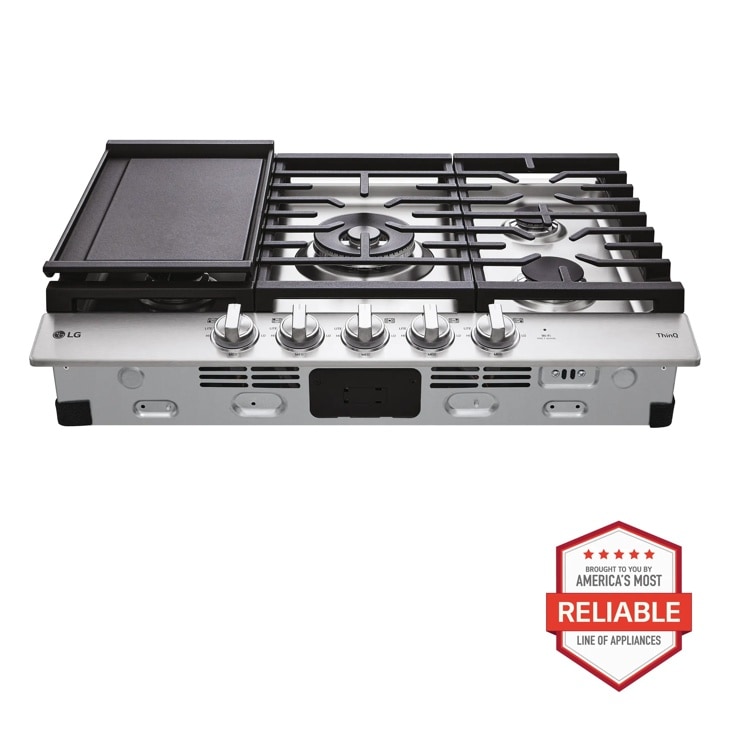
LG CBGJ3027S — 30 Inch Smart Gas Cooktop with UltraHeat™ 22K BTU Dual Burner and LED Knobs
Get the 30" Gas Cooktop (CBGJ3027S) with Removeable Cast-Iron Griddle Plate, Stainless Steel Finish, and White LED Illuminated Knobs for Premium Performance.
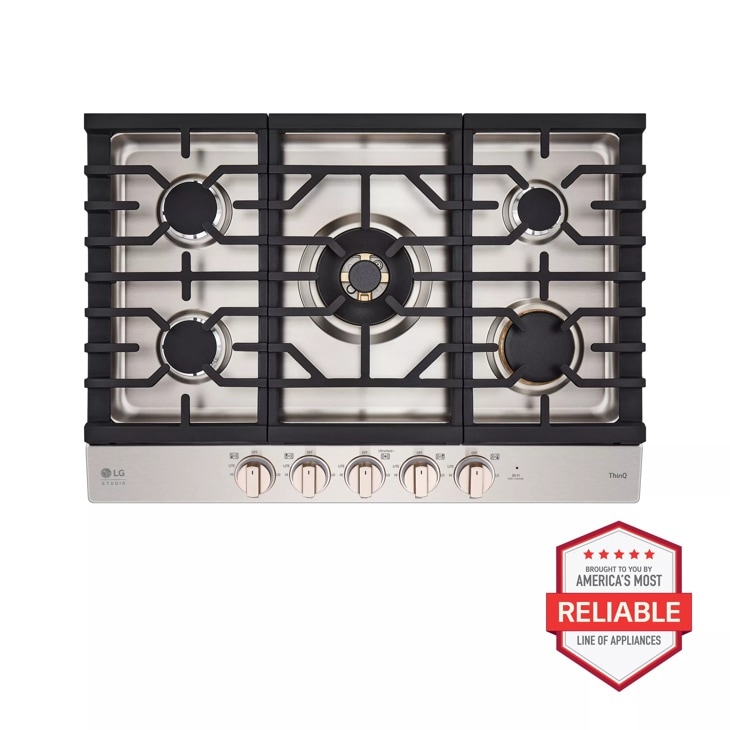
LG CBGS3028N — STUDIO 30 Inch UltraHeat™ Gas Cooktop with EasyClean®
Discover the LG STUDIO 30" Gas Cooktop that features UltraHeat™ Dual Burner and EasyClean®. Let your vibe shine with CBGS3028N from LG STUDIO.