What to Check First
- ThinQ App supports 2.4GHz Wi-Fi for improved stability. When selecting a Wi-Fi network, ensure to select one that does not include 5G or 5GHz in its name (SSID).
- When connecting to Wi-Fi, check the network name (SSID) and password. (You can find the network details on a sticker attached to the top or bottom of the router.) ※ Be sure to select the network name that corresponds to 2.4G wireless LAN.
- If there are obstacles, such as walls, between the ThinQ registered appliance and the router, we recommend placing the router and the appliance within 10 meters of each other. If the distance is greater, consider installing an additional router in between to ensure stable connection. In case of technical difficulties, please contact your internet service provider to check the connection quality and resolve any issues.
- ThinQ app supports 2.4GHz Wi-Fi. Please connect to a Wi-Fi network that does not include 5G or 5GHz in its name (SSID) and verify the network password. The distance between the router and ThinQ registered appliance should be kept within 10 meters. Remember to turn off mobile data on your smartphone before connecting to Wi-Fi.
- Points to check for your Wi-Fi router.
- ※ Be sure to select the network name that corresponds to 2.4G wireless LAN.
- Turn off mobile data on your Android smartphone (or cellular data on iPhones) and connect your smartphone to the Wi-Fi network you are currently using.
- This guide was created for all models, so the images or content may be different from your product.
Why This Can Happen
Symptoms can have more than one cause, and the correct steps depend on the exact model, installation and operating conditions. Use the checks above to narrow the issue before service.
Safety and Model-Specific Guidance
Frequently Asked Questions
What should I check first for LG ThinQ - Setting up Wi-Fi and Smartphone for LG ThinQ?
ThinQ App supports 2.4GHz Wi-Fi for improved stability. When selecting a Wi-Fi network, ensure to select one that does not include 5G or 5GHz in its name (SSID).
When should I stop troubleshooting and contact LG?
Stop if the product shows signs of electrical damage, burning, leaking near electrical components, or if the recommended checks do not resolve the issue. Use LG USA support for model-specific service guidance.
Does this guidance apply to every LG model?
Not always. Controls, error codes and service steps can differ by model. Confirm the exact model number and follow the linked LG USA article for model-specific instructions.
Related LG Products
These model pages are linked because the stored category or exact model matches this Help Library topic.
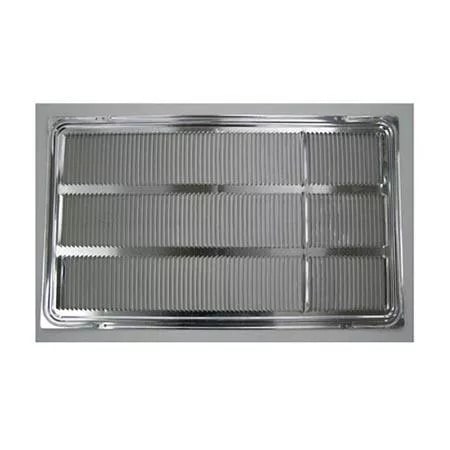
LG AXRGALA01 — Thru-the-Wall Air Conditioner Architectural Grille
Home Appliances · Top Appliance Deals
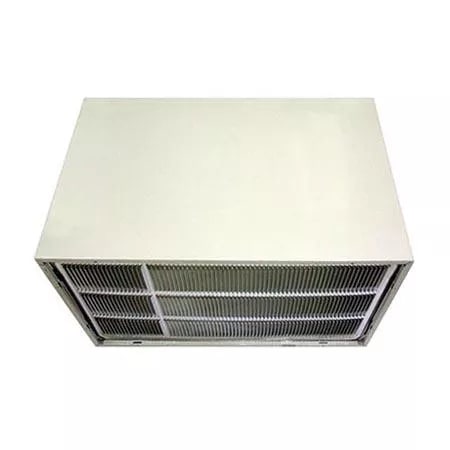
LG AXSVA4 — Thru-the-Wall Air Conditioner Wall Sleeve with Stamped Aluminum Grille
Get information on the LG AXSVA4. Find pictures, reviews, and technical specifications for this LG air conditioner grille.
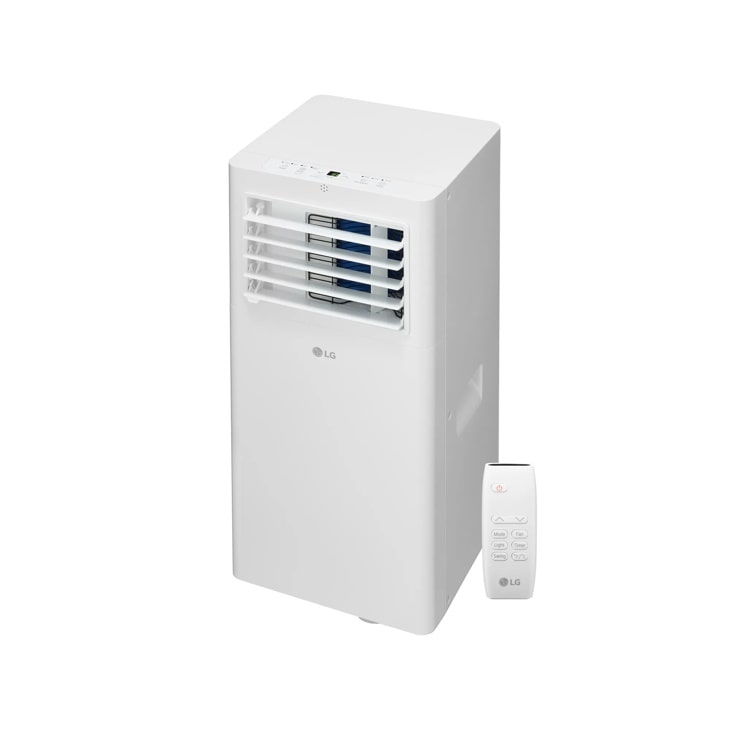
LG LP0525WFR — 5,100 BTU (SACC) / 9,000 BTU (ASHRAE) Portable Air Conditioner | Cools Up To 150 sq. ft.
Home Appliances · Top Appliance Deals
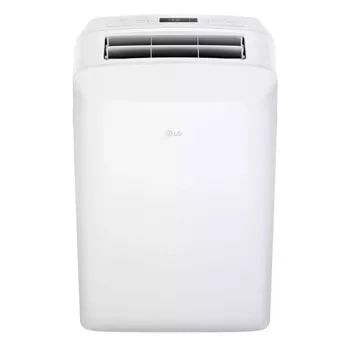
LG LP0623WSR — 6,000 BTU (SACC) / 9,700 (ASHRAE) Portable Air Conditioner | Up To 250 sq. ft.
Discover the 6,000 BTU Portable Air Conditioner that features 6,000 BTU and 3-in-1 Operation. Shop LP0623WSR from LG USA.
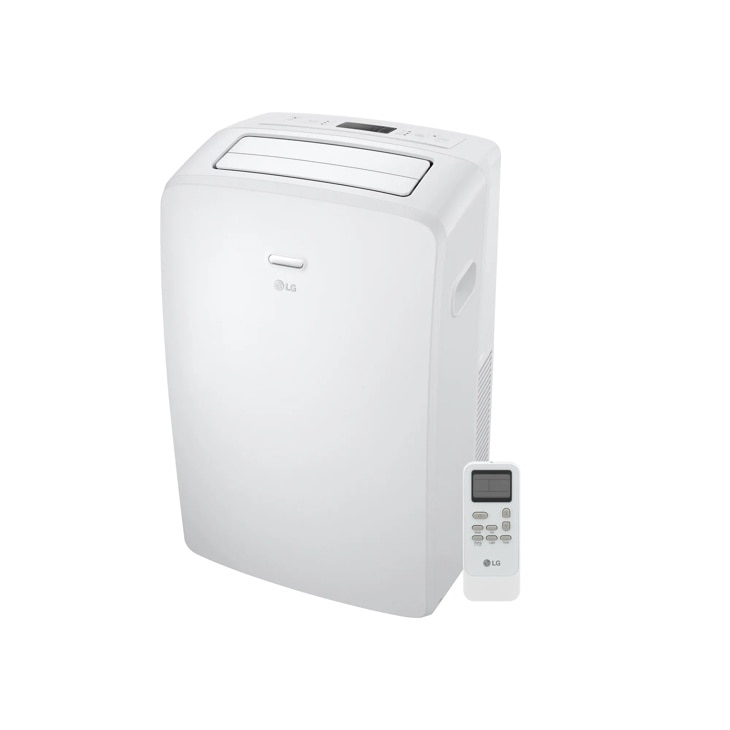
LG LP0723WSR — 7,000 BTU (SACC) / 10,500 BTU (ASHRAE) Portable Air Conditioner | Cools Up To 300 sq. ft.
Discover the 7,000 BTU Portable Air Conditioner that features 7,000 BTU and 3-in-1 Operation. Shop LP0723WSR from LG USA.